Features
What does ScoutSheet do?
ScoutSheet runs a league's player tryout from setup to the draft. Admins build the tryout and import players from the registration system's CSV. Families can pick an Eval Group from a private link. Volunteers check players in and number them at a desk. Evaluators score on their phones with or without a signal, or on paper. Admins then get rankings for each division and across the tryout, each evaluator's own report, and a CSV for the draft.
How is a tryout set up?
An Admin creates a tryout in a season, picks one of the league's scoring forms, and adds sessions (Day 1, Day 2), each with a weight. Divisions hold the eligibility rules (sport, league ages, gender), and each division has Eval Groups: the scheduled groups players are evaluated in, with a time, place and capacity. The standard Little League divisions can be added in one step.
- Scoring forms have three kinds of criteria: ratings on a scale you set (such as 1 to 5 in steps of 0.5), measured times or speeds with a unit, and choices with labeled options. A criterion can be marked lower-is-better, and a weight of 0 records it without scoring it.
- Forms lock once scored: after the first score, criteria can't be added or removed and their scales are fixed, so every score means the same thing. Names, descriptions, weights and order stay editable, and a form can be cloned.
- A setup checklist lists what would hide players from evaluators or slow the desk down: players with no Eval Group or no number, divisions without groups, groups over capacity, pinnie ranges that are too small, and no evaluators yet. Each item says where to fix it.
How do players get in?
Upload the CSV export from your registration system. Map its columns, map each of its division values to a ScoutSheet division (or skip it), preview, and confirm. Players match on name plus birth date within the league, so importing the same file again adds nobody twice, and a possible match waits for the Admin to decide. Re-importing never removes a player, and never changes a placed player's group, number, check-in or league age. The league keeps a history of who imported what and when, with counts only.
The CSV can carry parent contacts (email, phone, text and WhatsApp numbers), which only the league's Admins ever see, and an Eval Group column that puts each player who isn't in a group yet into the group of that name.
Can families choose their own Eval Group?
Yes. An Admin sends each family an email with a private link per child. The family opens it, without an account, and picks one of the Eval Groups open in the child's division, then can switch until the signup deadline. A group stops taking families when it reaches its capacity. Each pick or switch sends a confirmation with the group's time and place. The Signups page shows who has picked, sends reminders, and replaces a link that was forwarded by mistake.
Emails carry the league's name and reply-to address, each child's first name and division, and the deadline. Nothing is sent until an Admin presses send.
How does check-in work?
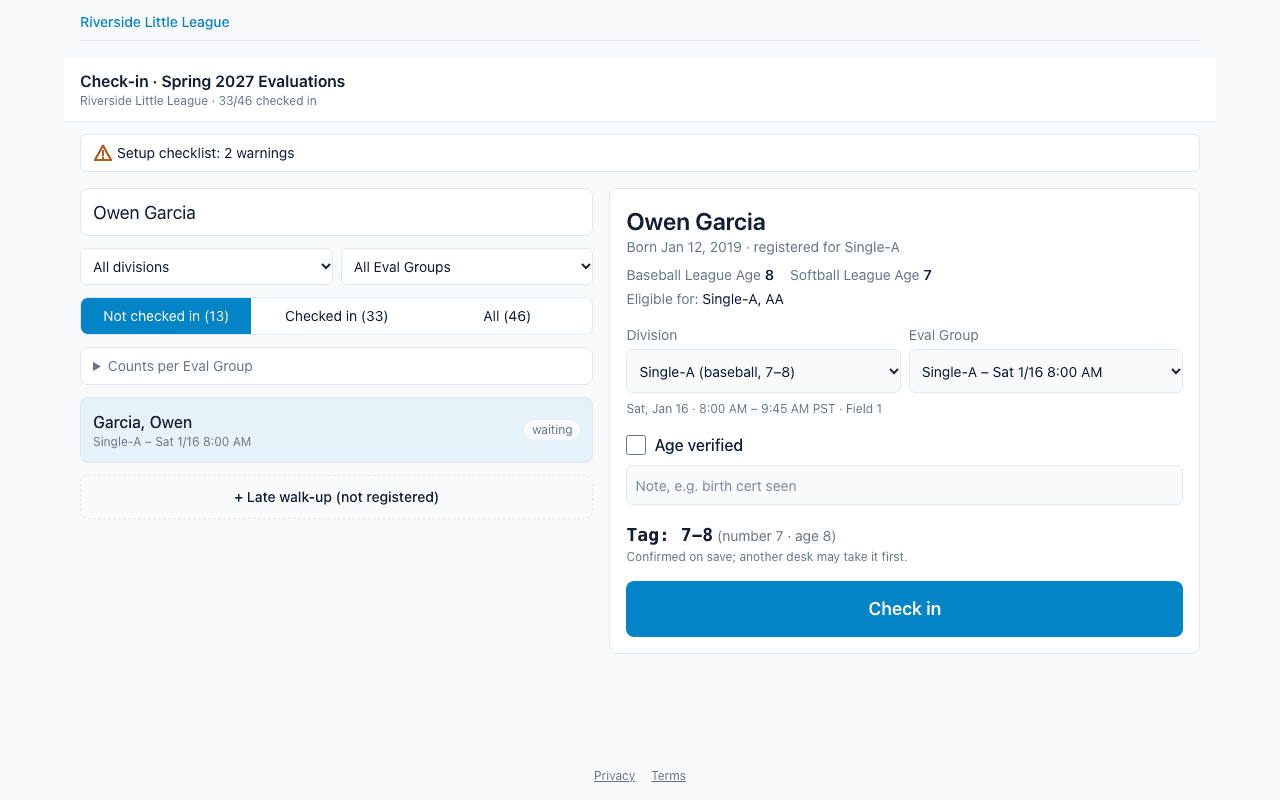
The check-in desk is one screen for a laptop or a phone. A volunteer searches for the player by name, sees their birth date, league age and the divisions they are eligible for, confirms the division and Eval Group, marks the age as verified, takes an optional photo, and saves. The player gets a tag such as 24-10 (number 24, league age 10), shown in large type for the volunteer to write on the player or match to a pinnie.
- Two ways to number, set per division: the next number in the Eval Group, assigned by the server, or the number printed on a pinnie, typed in and checked against the division's range.
- Numbers stay unique with several desks at once, and a released number is never handed out again without a warning.
- Warnings, not blocks: an age outside the division, a softball registrant in a baseball group, or a missing birth date shows a warning, and the volunteer decides.
- Walk-ups, moves and undo: add a player on the spot, move a checked-in player to another group, or undo a check-in.
How do evaluators score?
A coach joins the tryout with its five-character access key, picks an Eval Group, and sees its players by tag in large type, with the name smaller. They tap a rating, type a time, or pick an option for each criterion, and can add a note. Only players with a group and a number appear, the same rule the setup checklist warns about.
The scoring screen works with no signal once it has been opened online. How offline scoring works.
What if a phone dies?
Every Eval Group has a printable sheet: its players in tag order and a blank column for each criterion, with the scale, unit or choice labels printed in the header. An Admin later types the sheet into a grid under the evaluator name written on it. Those scores count in every report and ranking like anyone else's.
How are players ranked?
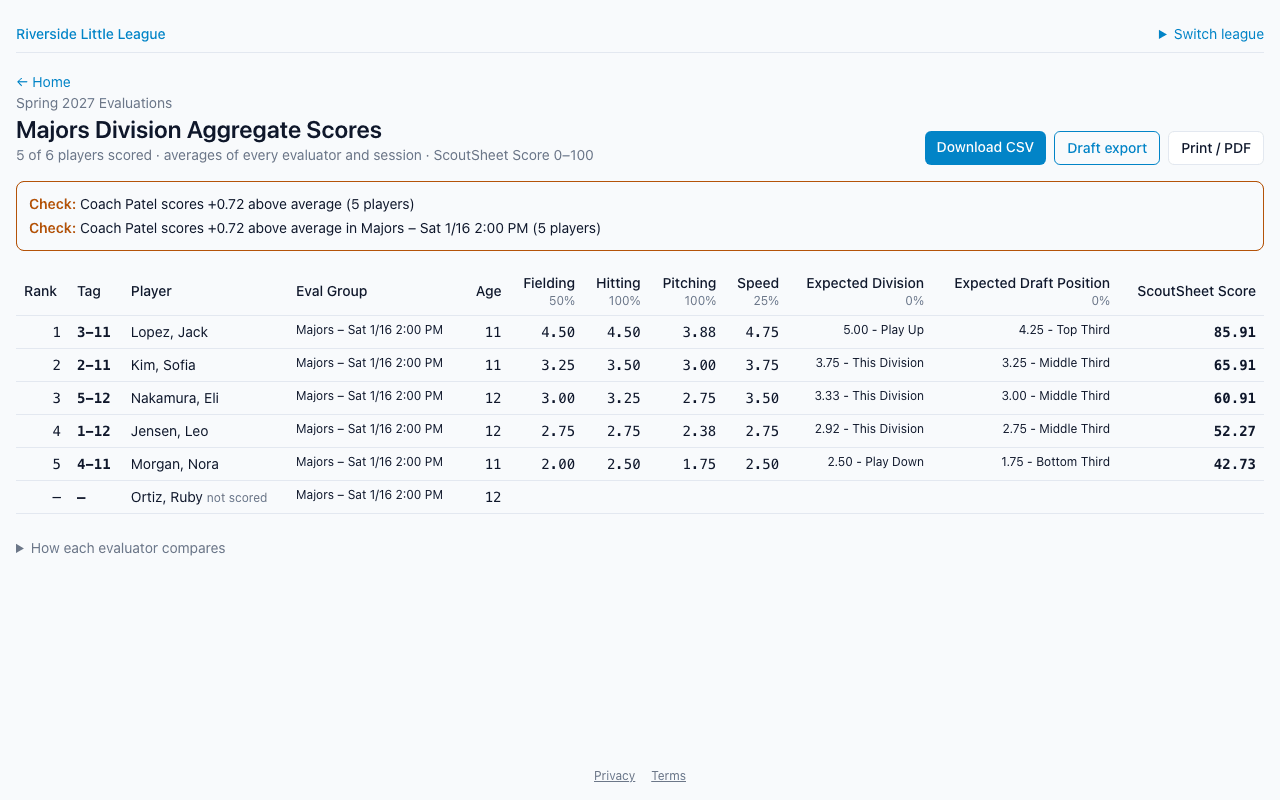
Each player gets a ScoutSheet Score from 0 to 100: the weighted average of their criterion averages, a rating counted as a fraction of its scale's top value and a time or speed by where it falls on the range set in the form. Session weights decide how much each day counts. A time is never compared with the other players' times to place it, so one mistyped time can't move everyone else. Players are ranked within their division across all of its Eval Groups, and players who look tied share a rank.
- Reports: each division's ranking, an overall ranking across divisions for Admins, each evaluator's own report with their notes, and a combined report for a coaching pair.
- Evaluator bias: a division's report flags an evaluator who scores at least half a rating point above or below the others on three or more shared players.
- Weights stay editable after scoring, and the rankings recompute. If a change would re-rank a division already released to evaluators, ScoutSheet asks first and takes that release back.
- Release: evaluators see their own report at any time, and a division's combined results only after an Admin releases them.
- Corrections: an Admin can correct or void a single score, and a phone can't overwrite the correction later.
- CSV exports keep the TeamGenius export's column layout, so existing spreadsheets keep working, with new columns added at the end. The draft export adds attendance, tags and each criterion per session. Every report also prints to PDF.
What does an Admin see while the tryout runs?
A progress page shows, for each Eval Group, how many players have checked in, which tags haven't arrived, which checked-in players nobody has scored yet, and when each evaluator's phone last synced, flagged after 20 minutes. It refreshes every 30 seconds and shows counts and tags, never scores.
When the last group is done, the Admin closes the tryout. Scores made before the close still count if they reach the server within 48 hours.
Who can do what?
| Role | Can |
|---|---|
| Admin | Everything below, plus setup, import, signup, every report, release, the league's users and its settings. |
| Check-in | The check-in desk and the printable Eval Group sheets. No scores or reports. |
| Evaluator | Score the tryout they joined with its key; read their own report, their pair's, and released division results. |
One sign-in can hold a different role in each league. How the data is kept apart is on the security and privacy page.
Ready to run your next tryout?
A league board member asks for a league, and the operator approves it. You are then the league's first Admin and can invite your check-in volunteers.