Setting up a tryout
A tryout in ScoutSheet has sessions (the days you evaluate), divisions (who is eligible and how players are numbered) and Eval Groups (the scheduled groups players are evaluated in). A league Admin creates the tryout, then sets these up on the tryout's Setup page before importing players. The setup checklist on that page says what is still missing.
Who can do what
| Step | Who |
|---|---|
| Create a tryout | League Admins |
| Edit sessions, divisions and Eval Groups | League Admins |
| Share the access key, manage evaluators and coaching pairs | League Admins |
| Add an Eval Group from the check-in desk | League Admins (on an open tryout) |
How do I create a tryout?
From the league's home page, press New tryout.
- Tryout name, for example "Spring 2027 Tryouts".
- Season: pick one, or choose New season… and give it a name and year. A closed season can't take new tryouts.
- Scoring form: the criteria evaluators will score. The league needs at least one form.
- Sessions: each day of the tryout, with its weight in the rankings. The default is one session, "Day 1", with weight 100. You can add up to 10.
Press Create tryout. ScoutSheet creates the tryout with a fresh five-character access key and opens its Setup page.
Sessions
Each session has a Name and a Weight. Weights are raw percentages, and 0 means the session is tracked but doesn't count in the rankings. A session can't be deleted once it has scores, once evaluators have joined the tryout, or while an Eval Group uses it, and a tryout always keeps at least one.
Weights can change after scoring, and reports recompute on their next load. If a change would re-rank a division report you've already released to evaluators, ScoutSheet asks first; saving takes that report back, and you release it again from Reports.
Divisions
A division says who is eligible and how players are numbered. If the tryout has none yet, Add standard divisions adds the standard Little League set, which you can then edit:
| Division | Sport | League ages | Players |
|---|---|---|---|
| Single-A | Baseball | 7–8 | Anyone |
| AA | Baseball | 8–9 | Anyone |
| AAA | Baseball | 9–11 | Anyone |
| Majors | Baseball | 10–12 | Anyone |
| Softball Minors | Softball | 7–10 | Girls |
| Softball Majors | Softball | 9–12 | Girls |
Neighbouring age ranges overlap by a year, so a child on the boundary can try out for either. Once divisions exist, the button becomes Add missing standard divisions and adds only the ones you don't have.
Each division has a Name, a Sport (Baseball or Softball), a Youngest league age and Oldest league age, and Players (Anyone, Girls or Boys). Eligibility rules only warn at the check-in desk; they never block a check-in.
What is league age?
League age is a player's age on the cutoff date in the season's year. Baseball uses the league's age cutoff (set in league settings; 08-31 for Little League baseball). Softball always uses December 31 of the year before, so one child can have a different league age in each sport. If only a birth year is known, league age is the season year minus the birth year.
ScoutSheet takes a snapshot of the league age when a player is checked in or moved, and puts it on the player's tag. It never recalculates it afterwards, even if the cutoff or the birth date changes later.
How are players numbered?
Each division's Numbering at check-in decides how players get the number evaluators see:
- Sharpie (next number in the Eval Group): the desk gets the next number in that Eval Group from ScoutSheet and writes it on a sticker.
- Pinnies (pre-numbered): the volunteer types the number printed on the player's pinnie. Choose where each number must be unique (Eval Group, Division or Whole tryout) and the First pinnie and Last pinnie you have.
Player tag is how the number shows to evaluators: Number-age (for example 24-10, number 24, league age
10; the default for sharpie numbers) or Number only (24; the default for pinnies).
Numbering locks
Once any player in a division has a number, its numbering settings can't change. Set them before tryout day.
Eval Groups
An Eval Group is a scheduled group of players evaluated together, inside a division. Evaluators pick an Eval Group on their phone and see only its players.
Under a division, press Add an Eval Group and fill in:
- Label, for example "AAA – Sat 1/16 10:00 AM".
- Starts and Ends, in the league's time zone.
- Location, for example "Field 3".
- Capacity (optional): how many players fit. Families picking a group from a signup link can't choose a full one; an Admin can move a player in over capacity.
- Session (optional): which session the group belongs to.
Use the up and down arrows to reorder divisions and Eval Groups. A division or Eval Group that has players can't be deleted: move the players out first. Deleting a division deletes its Eval Groups.
Each Eval Group row also links to Print sheet and Enter paper scores; see Paper sheets and paper-score entry.
Who evaluators see
A player is visible to evaluators only once they are in an Eval Group and have a number. The check-in desk gives both. Importing or a family's signup can put a player in an Eval Group, but the number comes at check-in.
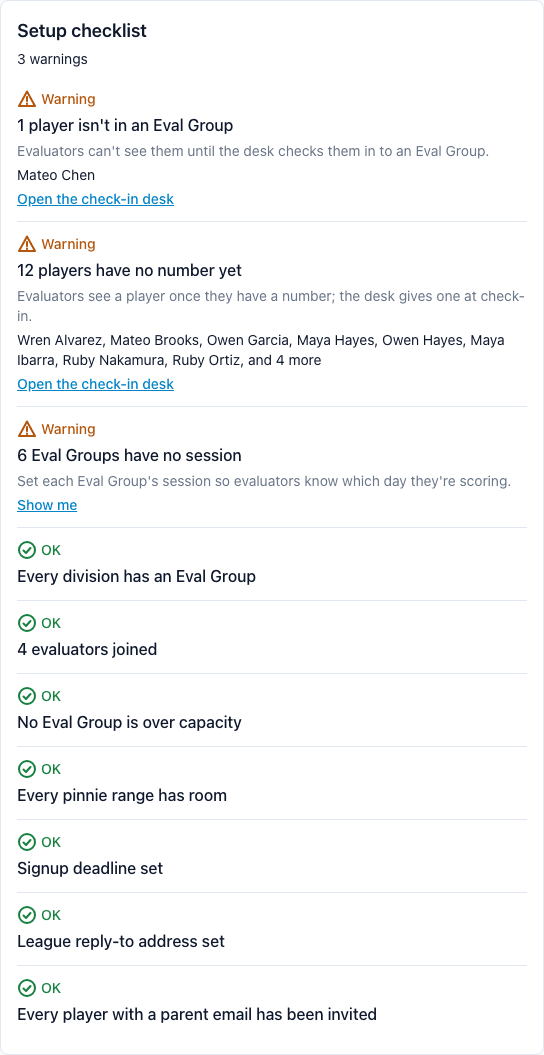
The setup checklist
The Setup page shows a checklist of what still needs attention, each item with a link to where you fix it:
- divisions with no Eval Groups (their players can't be checked in);
- no evaluators have joined yet;
- players not in an Eval Group, and players without a number yet;
- Eval Groups over capacity;
- pinnie ranges too small for the division's players;
- with two or more sessions, Eval Groups with no session;
- once signups are in use, a missing signup deadline, a missing reply-to address, and families not yet invited.
The check-in desk shows a short version of the same checklist.
Evaluators and the access key
The tryout's Evaluators page (Admins only) shows the Access key. Give it to your managers and coaches: they enter it at Join a tryout to start scoring (see Scoring on a phone). Keys are five characters with look-alike letters and digits left out.
- Regenerate key stops the old key at once. Anyone typing it is told it was replaced.
- Who joined lists each evaluator; joins in the last day are highlighted.
- Remove takes away someone's access to this tryout. Scores they already made keep counting. You can also regenerate the key in the same step. Restore gives access back.
- Coaching pairs links a manager and an assistant coach who draft together, so they share one combined report.