The check-in desk
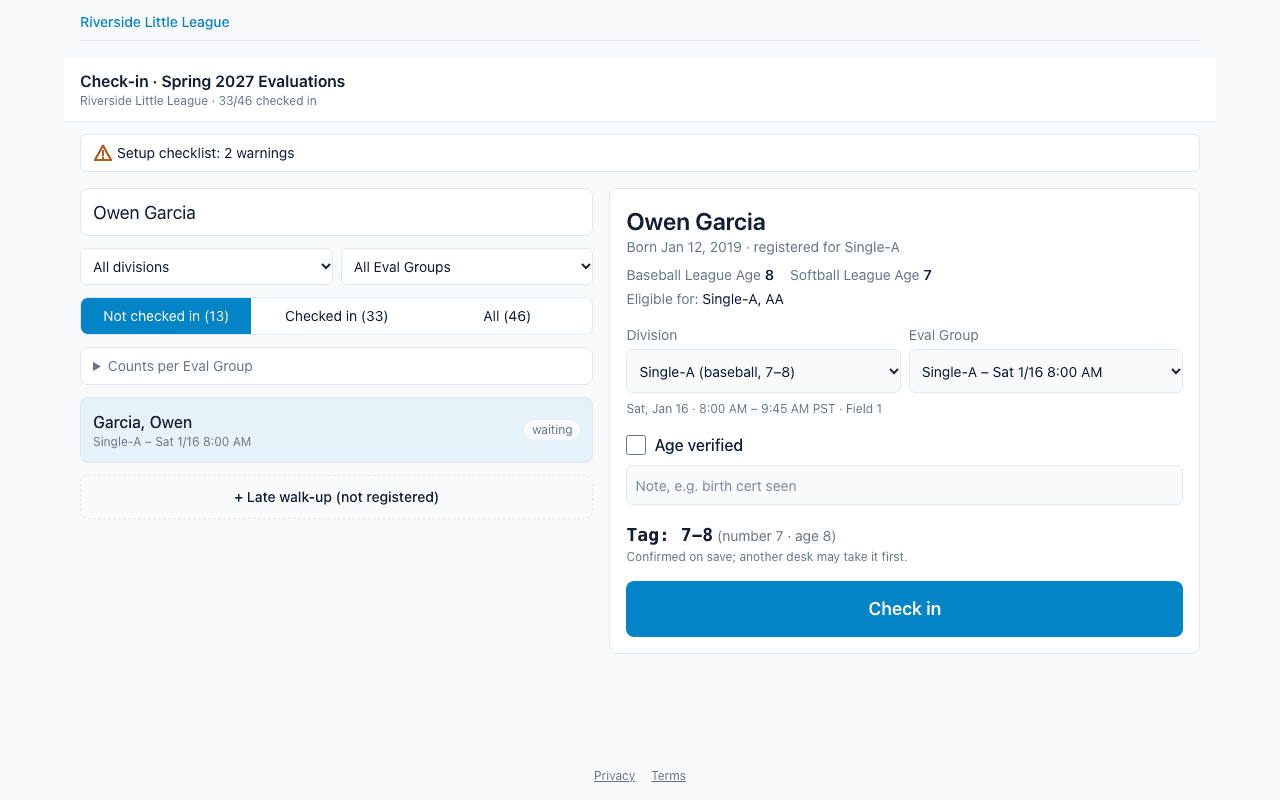
On tryout day, Check-in volunteers and Admins check each player in at the desk: find the player, confirm their division and Eval Group, verify their age if you can, take a photo, and save. Saving gives the player their number, and from then on evaluators see them on their phones. The desk works on a phone, tablet or laptop, and needs a connection.
Who can do what
| Step | Who |
|---|---|
| Check players in, move them, undo a check-in, add a walk-up | Check-in volunteers and Admins of the league |
| Print an Eval Group sheet | Check-in volunteers and Admins |
| Add an Eval Group from the desk | Admins, on an open tryout |
Open the desk from ScoutSheet's home page: each tryout card has a Check-in desk button for these roles. If you don't see it, ask an Admin to give you the Check-in role on the league's Users page.
Finding a player
Type in Search players by name. Each word you type must start a word of the name, in any order, so "ch av" finds Ava Chen, and accents don't matter. Press Enter to pick the first match.
You can narrow the list by Division and Eval Group, and switch between Not checked in, Checked in and All. The header shows how many players are checked in, and the list refreshes every 20 seconds, so several desks can work at once.
How do I check a player in?
- Select the player. The form shows their birth date, their league age for each sport, the division they registered for, and which divisions they are eligible for.
- Check the Division and Eval Group. Change them if the player is in the wrong place.
- If you saw a birth certificate or other proof, tick Age verified and add a short note.
- Take a photo with Take photo (or Choose file, or Webcam on a laptop). The photo is optional and helps evaluators recognise the player. Photos are never shown publicly.
- Give the number:
- Sharpie divisions: ScoutSheet gives the next number in the Eval Group when you save.
- Pinnie divisions: type the number on the player's pinnie.
- Press Check in.
The confirmation shows the player's tag in large type, for example 24-10: number 24, league age 10. For sharpie
divisions, write it on the name sticker. Then press Next player.
Warnings
The desk warns, but never blocks, when:
- there is no birth date on file;
- the player's league age is outside the division's range;
- the player registered for a different division, or a division of the other sport;
- the division is for girls or boys only and the player isn't.
Read the warning and decide with your league's Admin.
Numbers are never reused by accident
If two desks save at the same moment, one is told to save again. A number that was released (by a move or an undo) is never handed out again for sharpie divisions. For pinnies, ScoutSheet asks before reusing a released number: Reuse it anyway only if that pinnie was handed back.
Moving a player
Select a checked-in player and use Move to another Eval Group; any division can be chosen. In a sharpie division the player always gets a new number: cross out the old tag and rewrite the sticker. In a pinnie division the player keeps their number unless you type a new one. A move takes a fresh league-age snapshot.
Undo a check-in
Undo check-in clears the player's number (it won't be reissued) and the age check. The player stays in their Eval Group, ready to check in again.
Walk-ups
For a player who didn't register, press + Late walk-up (not registered), enter their first name, last name, birth date, gender, division and Eval Group, and press Add player, then check in. ScoutSheet warns if a player with that name is already registered: check them in instead of adding a duplicate.
Adding an Eval Group (Admins)
On an open tryout, Admins see + Add an Eval Group… in the Eval Group picker, with a name, start and end time. Check-in volunteers don't see it.
Printing a sheet
Print sheet for the selected Eval Group, or Print next to each group under Counts per Eval Group, opens the group's printable score sheet. See Paper sheets and paper-score entry.
The setup checklist
The top of the desk shows a short setup checklist, for example divisions with no Eval Groups or Eval Groups over capacity. Admins can follow its links to fix them.
When the connection drops
The desk doesn't work offline and keeps no queue. If a save can't reach ScoutSheet, it says nothing was saved: check the connection and press save again. (Evaluators' phones are different: they keep scoring offline.)
When the tryout is closed
Once an Admin closes the tryout, the desk is read-only. An Admin can reopen it from the Setup page.